← All products
ROB RUN
from$3.65MASON INTERNAL
MASON INTERNAL for ROB RUN: character, vehicle, camera and loot ESP, Chams, Aimbot with mouse movement calibration, weapon profiles, battle mode and radar. Steam, Windows 11 x64, Intel and AMD processors. Hiding from video recordings and screenshots is not supported.
Gallery
06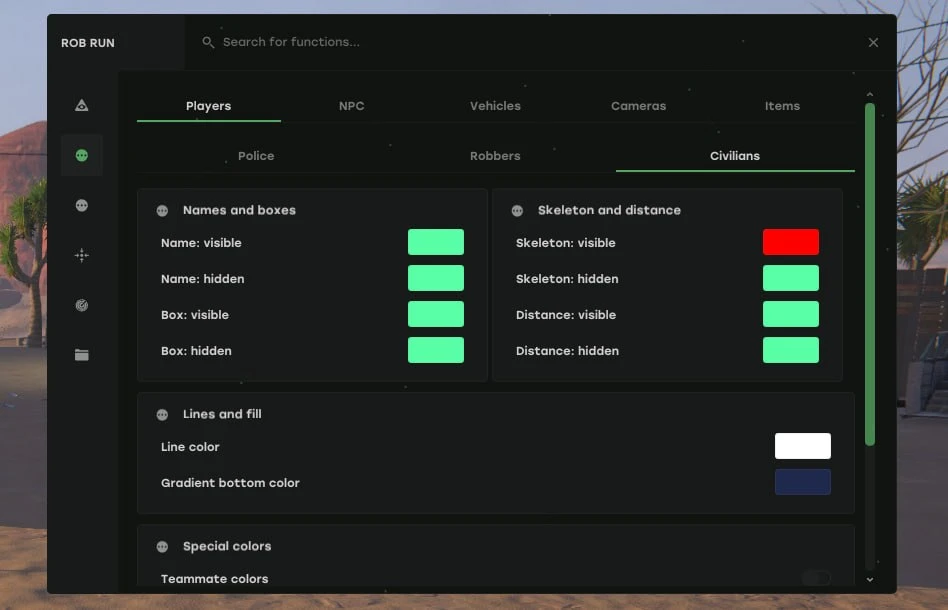
01 / 06
System requirements
- Game clients
- Steam
- Game mode
- Windowed / borderless fullscreen / fullscreen
- Operating systems
- Windows 11 x64
- Anti-cheat
- In-game
- Processors
- Intel / AMD; Xeon and FX support is not guaranteed
- Hide on stream/screenshots
- No
- USB flash drive required
- Not required
Features
Player and NPC ESP
- Separate profiles for police, robbers, civilians, NPCs, vehicles, cameras and items; visibility filter and maximum distance.
- Player and vehicle boxes, snaplines, skeletons, head circles and skeleton distance fading.
- Names, state, distance, clan, role, held item as text or icon, ID and an in-vehicle indicator.
- Downed markers; filters for dead players, teammates and downed players.
- Regular and corner 2D boxes: height, width, thickness, fill, vertical gradient and opacity; snaplines from the bottom, centre or top of the screen.
- Labels with or without a background; skeleton thickness.
Item and world object ESP
- Hide empty objects, game icons when available, rarity colours and grouping of nearby loot labels.
- Detail distance, focus area around the crosshair and maximum label count.
- Separate object types and loot categories; sell price accounting for item quantity.
- Container colour based on the highest known rarity of its contents.
- Loot, loot nodes, cargo, cash chargers, map items, containers with available content information, cash and cargo chargers.
- Filters for weapons, ammo, armour, equipment, medical items and consumables, keys and tools, valuables and cash, and other items.
Weapons and battle mode
- Enable ESP for all character categories and display your own character.
- Weapon recoil suppression (No Recoil) and weapon sway removal (No Sway).
- Battle mode, F6 by default: temporarily hides NPCs and civilians on ESP and radar, as well as loot, cameras and their view areas; press again to restore the settings.
Aimbot
- Aim assistance requires calibration; separate activation and force-head-aim keys.
- Hold a key or run continuously; ADS-only mode; aim at the head while holding Shift.
- Target lock, maximum distance, target switch delay and aim smoothing.
- Recorded mouse movement imitation strength; motion prediction and prediction time in milliseconds.
- Target categories: police, robbers, civilians and NPCs; exclude dead or downed characters and players in vehicles.
- Select body parts or the nearest suitable point; multipoints with separate visibility checks and adjustable allowed areas.
FOV and visual settings
- Adaptive FOV — adapt the acquisition area to the game camera's field of view.
- FOV size — adjust the target search area.
- FOV border — display the acquisition area outline.
- Border thickness — adjust the FOV line thickness.
- FOV background — fill the acquisition area.
- Locked target — mark the currently selected target.
- Prediction crosshair — display the predicted aim point.
- Crosshair size — adjust the prediction marker size.
Configuration management
- Refresh list — refresh the list of saved INI configurations in C:\mason.
- Select configuration — choose a saved profile.
- Configuration name — enter a new profile name.
- Create — save current settings to a new file.
- Save — overwrite the selected configuration with current settings.
- Load — restore saved visual settings, radar, language, weapon features, Aimbot profiles and calibration.
- Delete — remove the selected configuration.
Chams and colours
- Model highlighting with visibility, distance and filters: solid, translucent or glowing.
- Separate colour and opacity for visible and occluded model parts.
- Separate name, box, skeleton and distance colours for visible and hidden players; line and lower gradient colours.
- Special colours for teammates, downed players, players in vehicles, vehicles, working and broken cameras, alarms and items.
- Colour editor: hue, opacity, HEX and a preset palette.
Vehicle and camera ESP
- Occupied vehicle filter; hide owned vehicles and the current vehicle.
- Vehicle name, owner, driver, speed and status.
- Hide broken cameras; camera view area with adjustable fill and opacity.
Menu and controls
- Insert — menu; End — close the menu and stop the overlay; Ctrl+1…6 — switch between six categories.
- Move the menu, scroll, sidebar navigation, function search in Russian and English; Russian and English interface.
- Keyboard and mouse key bindings; exact number entry with Ctrl+click on a slider.
- Escape — close calibration, clear the search or a key binding.
Weapon profiles and calibration
- Separate profiles for pistols, assault rifles and other weapon groups.
- Mouse movement calibration: four stages of three movements; record again, cancel and start over.
- Resetting a profile removes calibration and disables dependent settings; display of in-game and ADS sensitivity.
Targets and hitboxes
- Target categories — select police, robbers, civilians and NPCs.
- Ignore dead — exclude dead characters.
- Ignore players in vehicles — exclude passengers and drivers.
- Ignore downed — exclude downed characters.
- Selection method — select specified body parts or the nearest suitable point.
- Multipoints — additional aim points with separate visibility checks.
- Selected areas — configure permitted body parts.
- Nearest point — choose the visible point closest to the centre of the crosshair.
- Head — aim at the head area.
- Neck — aim at the neck area.
- Torso — aim at the torso area.
- Pelvis — aim at the pelvic area.
Radar
- Enable — display character markers on the built-in minimap.
- Maximum distance — adjust detection range.
- Point size — adjust marker sizes.
- Player names — display nicknames on the radar.
- Distance — display the distance to characters.
- Edge markers — display targets beyond the radar area.
- Circular area — switch to a circular radar.
- Character categories — separate highlighting for police, robbers, civilians and NPCs.
- Move minimap — change the radar position.
- Position X — horizontal minimap coordinate.
- Position Y — vertical minimap coordinate.
- Reset position — restore the original radar position.
- State — information about minimap availability and data freshness.